
Quickstart
Get up and running with Flint in about 15 minutes
This guide will get you up and running with Flint in about 15 minutes. By the end, you'll understand how to navigate the platform and create your first workflow.
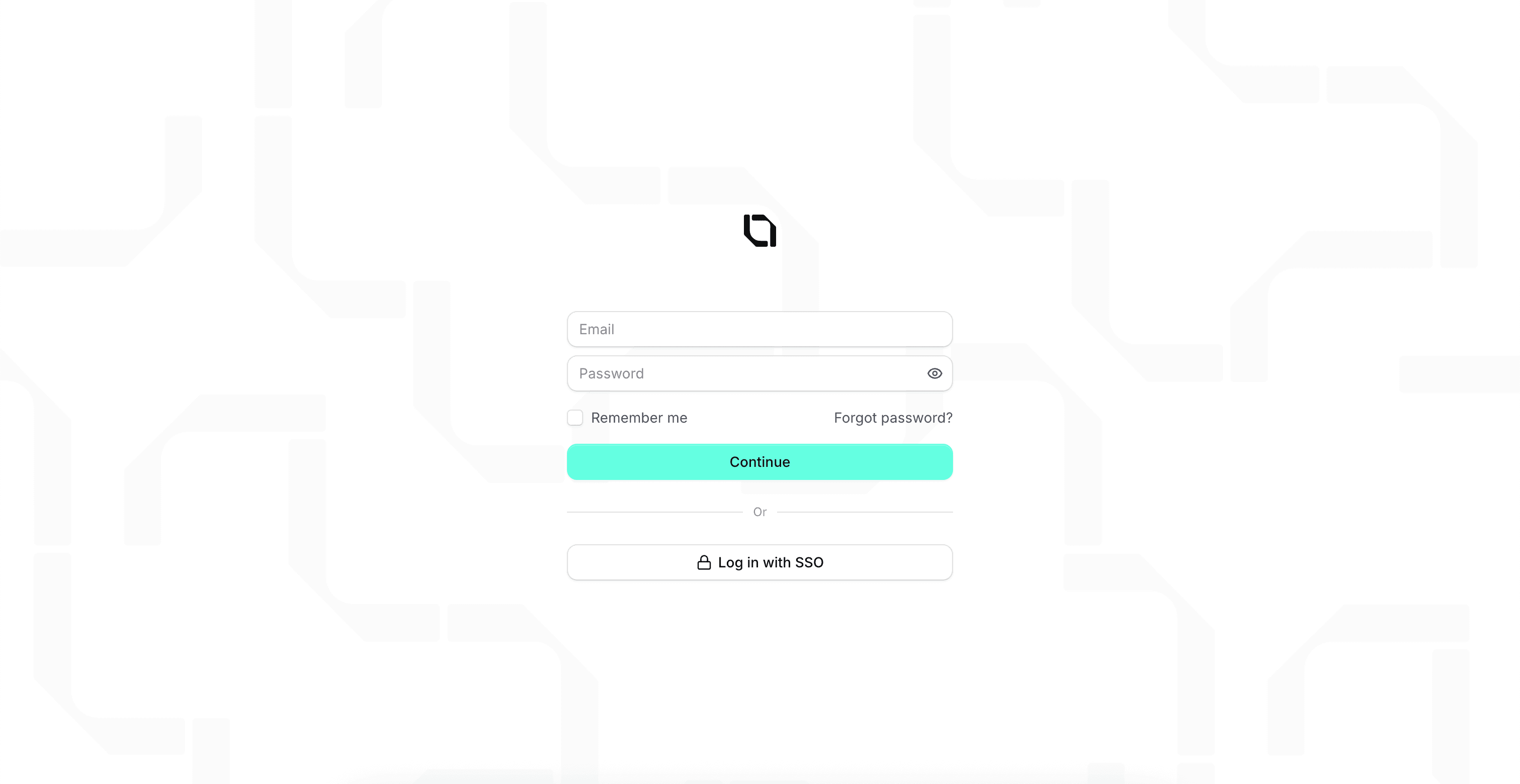
Log In to Flint
- Go to your organization's Flint URL
- Enter your email and password
- If your organization uses two-factor authentication (2FA), you'll be prompted to enter a code from your authenticator app
Explore the Dashboard
After logging in, you'll see the main dashboard. Here's what you'll find:
Main Navigation (Left Sidebar)
The sidebar gives you access to all main areas:
- Workflows - Create and manage your automations
- Templates - Create document templates for auto-filling
- Interventions - Review items that need your attention
- Analytics - View performance metrics
- Notifications - See alerts and updates

User Menu
At the bottom of the sidebar, you'll find:
- Settings - Access your personal and organization settings
- Get Support - Chat with our support team
- Sign Out - Log out of your account
View Your Workflows
Click Workflows in the sidebar to see your organization's automations.
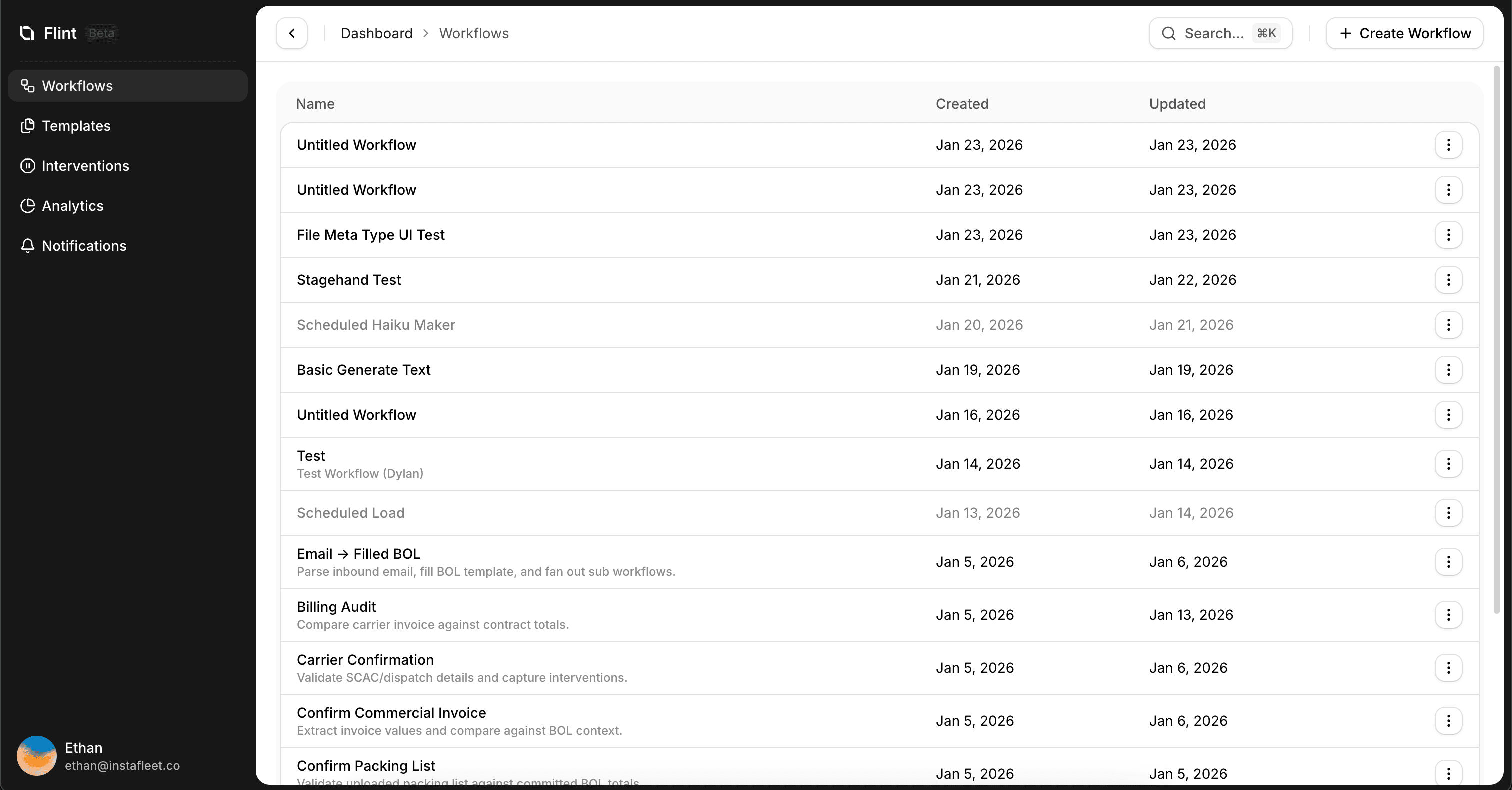
From here, you can:
- See all workflows and their status
- Create new workflows
- Click a workflow to view its details and run history
Understand the Workflow Overview
Click on any workflow to see its overview page:
![screenshot of /dashboard/workflows/[workflow] showing the overview with stats](/_next/image?url=https%3A%2F%2Fcdn.flint.com%2Fworkflow_page.png&w=3840&q=75)
The overview shows:
- Total Runs - How many times this workflow has executed
- Success Rate - Percentage of successful completions
- Average Duration - How long runs typically take
- Pending Interventions - Items waiting for human review
- Recent Runs - Latest workflow executions with their status
Check Your Interventions
Interventions are tasks that need human input. Click Interventions in the sidebar.
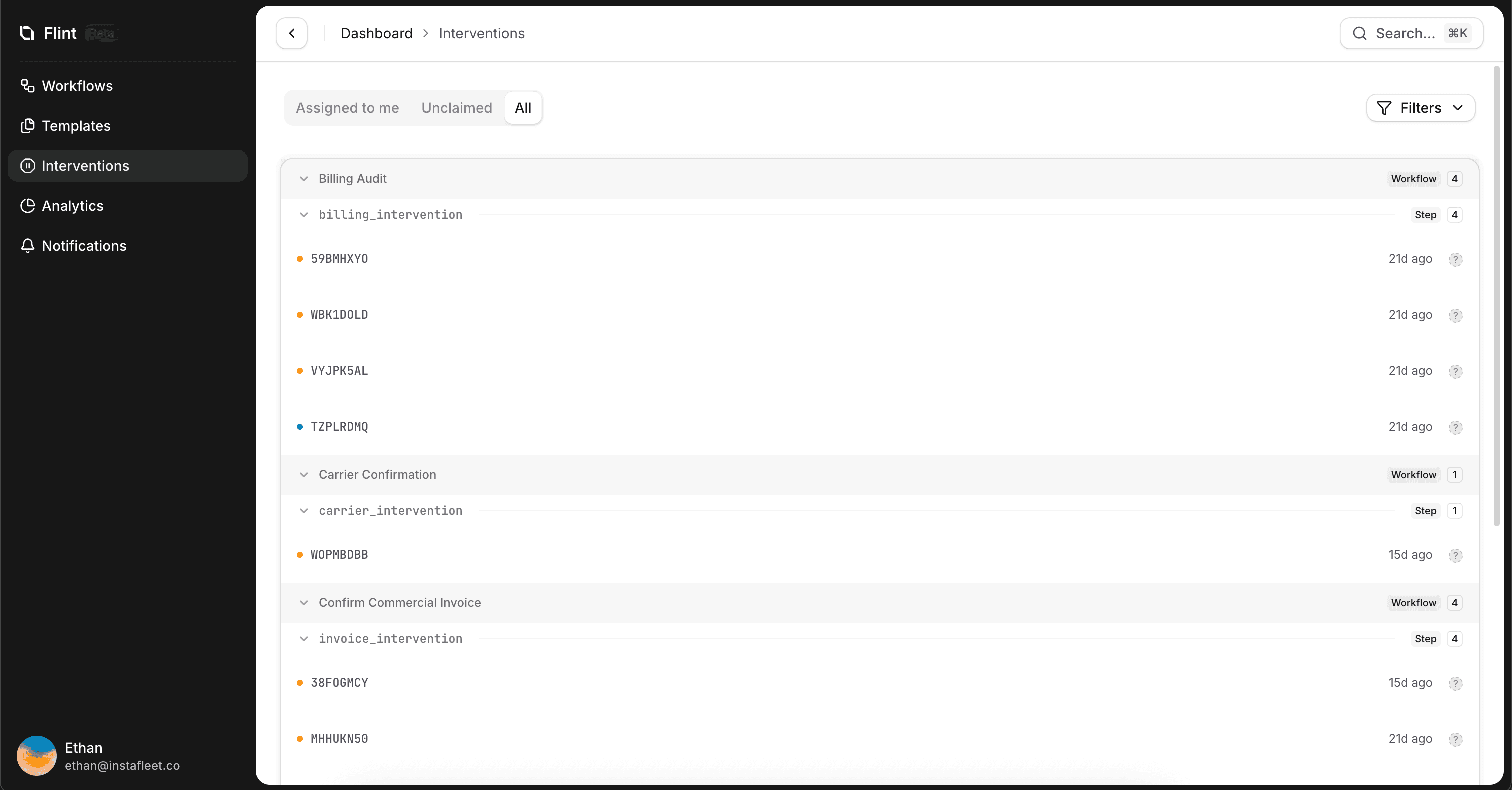
You'll see:
- Assigned to Me - Tasks specifically assigned to you
- Unclaimed - Tasks anyone on your team can handle
- All - Every intervention across your organization
Access Settings
Click the Settings option in the user menu (bottom of sidebar). This opens the settings dialog.
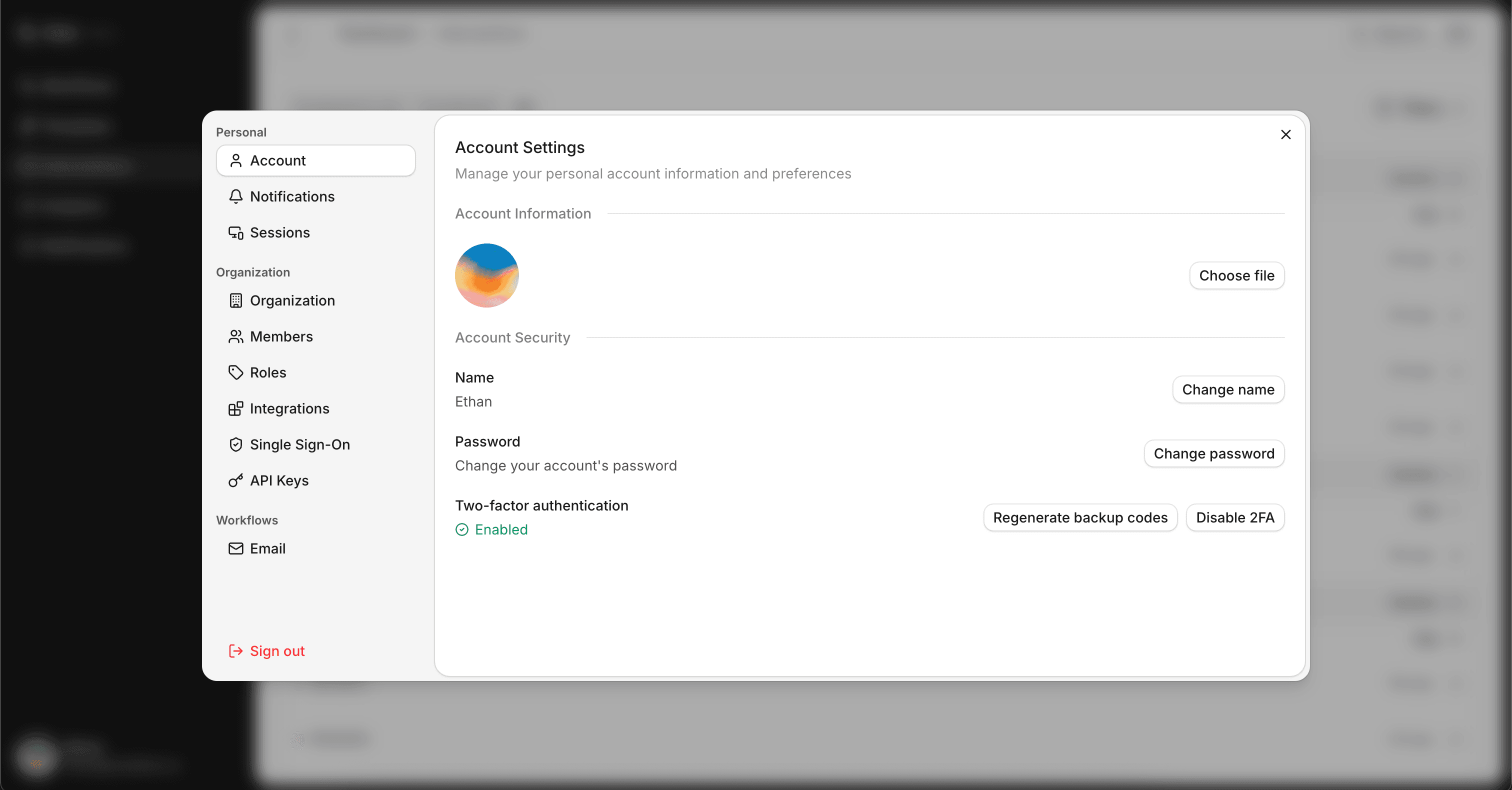
From settings, you can:
- Update your profile and password
- Manage notification preferences
- View and manage team members (if you have permission)
- Configure integrations with other tools
Next Steps
Now that you're familiar with the basics, we recommend:
- Concepts — Learn the core concepts behind workflow automation
- Your First Workflow — Create a simple workflow from scratch
- Working with Interventions — Learn how to handle tasks that need your review
- Use keyboard shortcuts - Press
Cmd+K(Mac) orCtrl+K(Windows) to open the command palette for quick navigation - Check notifications - The notification icon shows a badge when you have unread items
- Hover for help - Many buttons and fields have tooltips that appear when you hover over them