
Your First Workflow
Create a simple workflow that sends a notification - learn the basics in 5 minutes
Let's create a simple workflow together. We'll build an automation that sends a notification when triggered manually - a great way to learn the basics.
What We'll Build
A workflow that:
- Starts when you click "Run"
- Sends you a notification with a custom message
Time Required
This takes about 5 minutes.
Create a New Workflow
- Click Workflows in the sidebar
- Click the Create Workflow button in the top right

- A dialog will appear asking for a name and description
- Name: "My First Workflow"
- Description: "A simple test workflow that sends a notification"
- Click Save
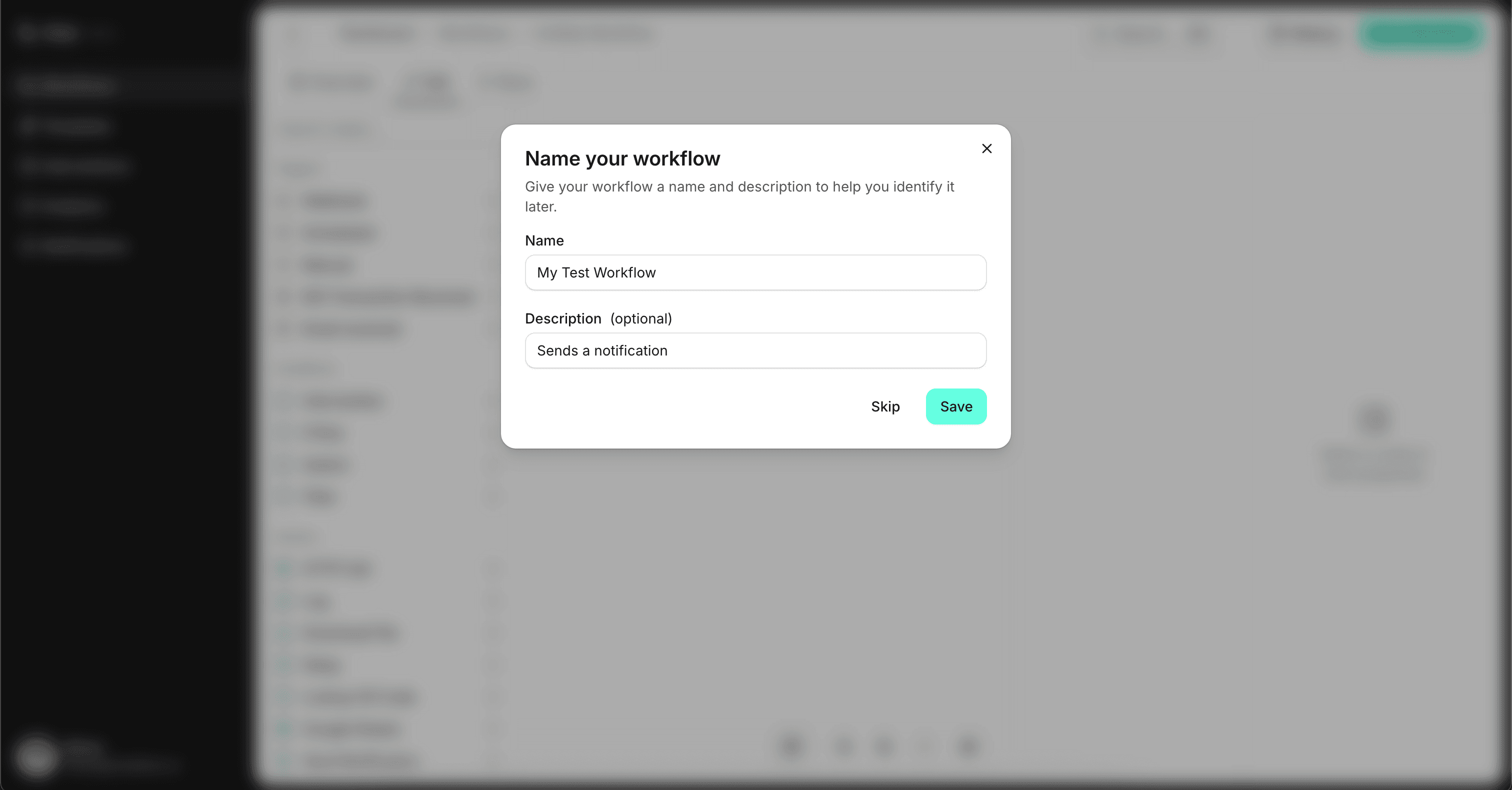
You'll be taken to the workflow editor.
Explore the Editor
The workflow editor has three main areas:
![screenshot of /dashboard/workflows/[workflow]/edit showing the full editor layout](/_next/image?url=https%3A%2F%2Fcdn.flint.com%2Fworkflow_editor.png&w=3840&q=75)
- Node Library (left panel) - Drag triggers and actions from here
- Canvas (center) - Your workflow appears here
- Properties (right panel) - Configure the selected item
Add a Trigger
Your workflow needs something to start it. Since we're building a test workflow, we'll use a manual trigger.
- In the left panel, find Manual under the Triggers section
- Drag it onto the canvas

Add a Notification Action
Now let's add something that happens when the workflow runs.
- In the left panel, find Send Notification under Actions
- Drag it onto the canvas below the trigger
- Connect the trigger to the action by dragging from the trigger's bottom handle to the action's top handle
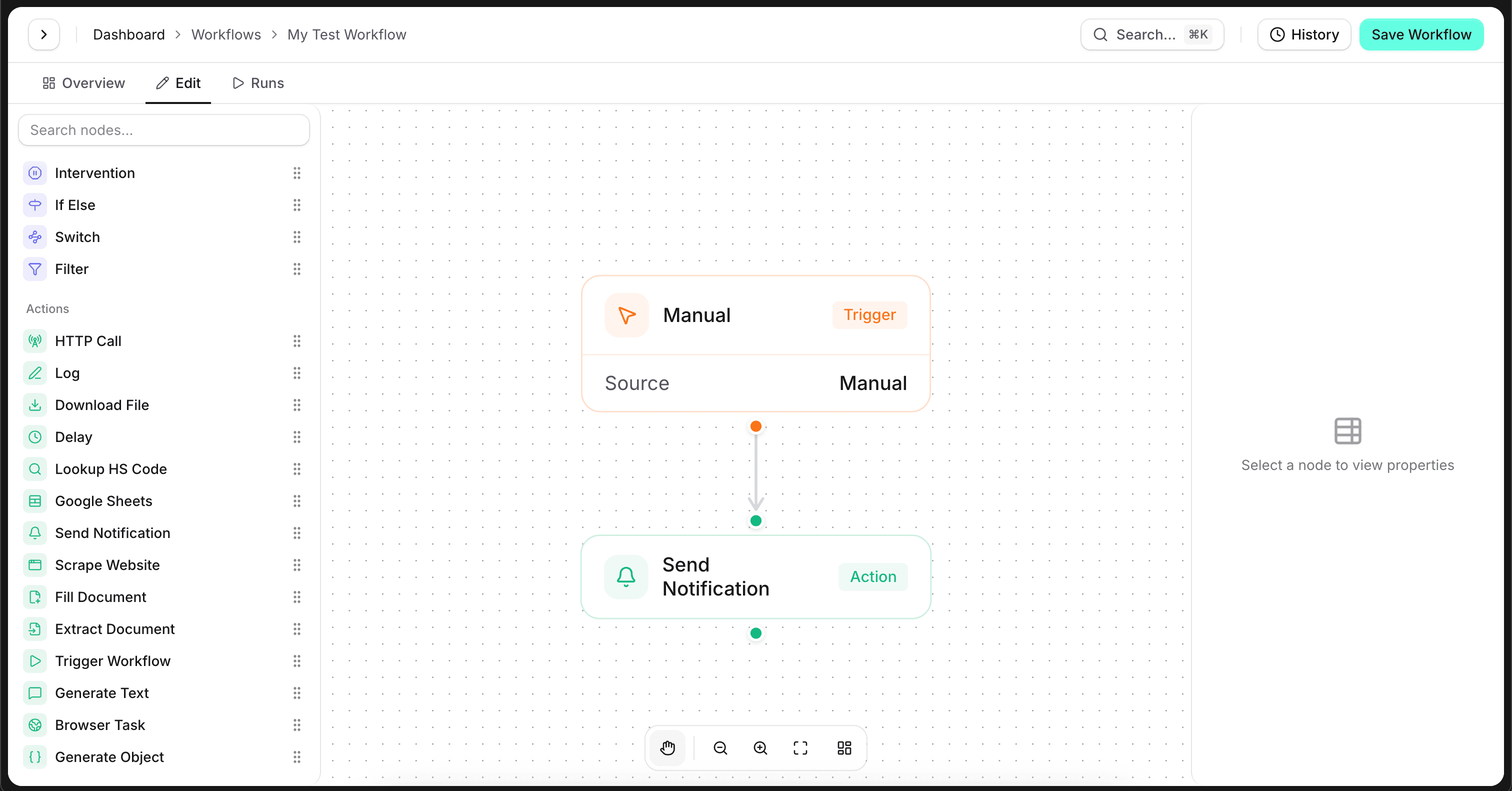
- Click on the Send Notification node to configure it
- In the properties panel, set:
- *Description: "Hello from my first workflow! This workflow ran successfully."
- Title: "My First Notification" (optional)
- Audience: "All users" (will send to all users in the organization)

Save Your Workflow
- Click the Save button in the top right corner

Your workflow is now saved and ready to test.
Run Your Workflow
-
Go to the 'Runs' tab and click the 'Run' button

-
A dialog will appear, click 'Run Workflow'
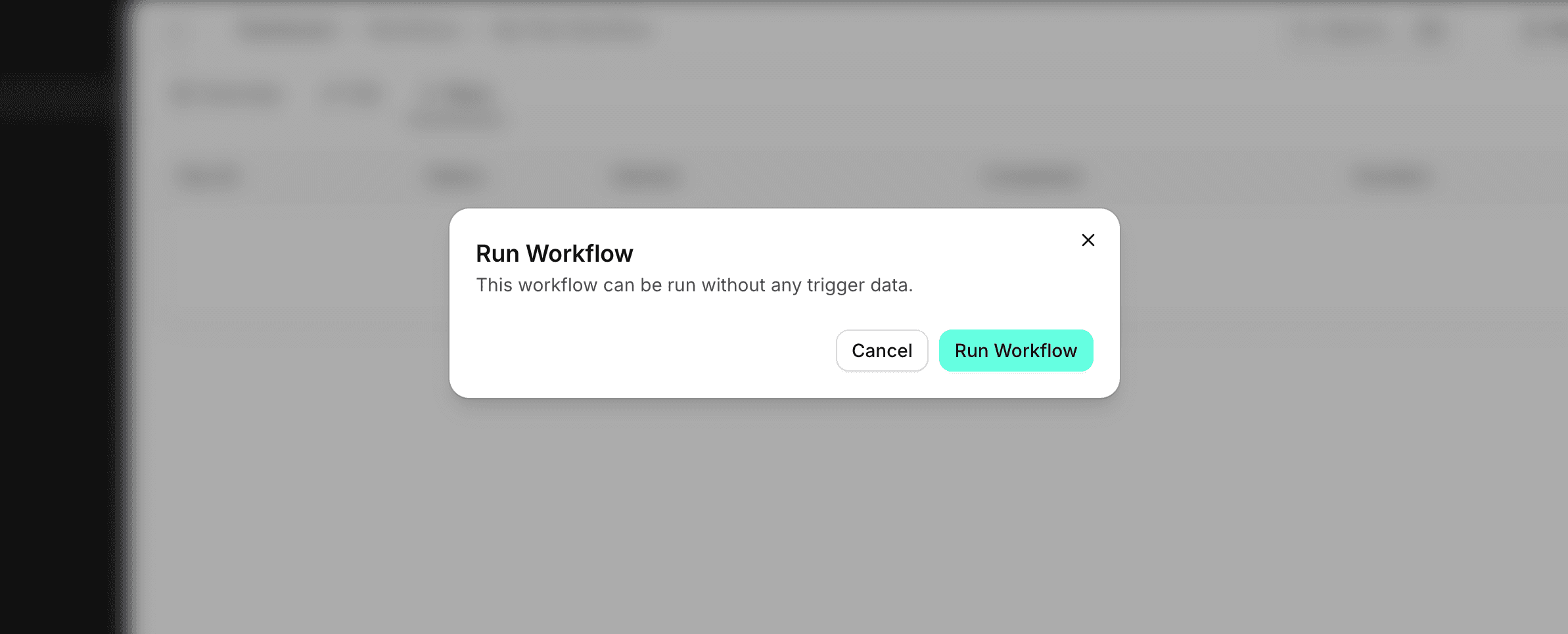
- You should see a success message indicating the workflow has started
Check the Results
- Click Notifications in the sidebar
- You should see your notification: "Hello from my first workflow!"
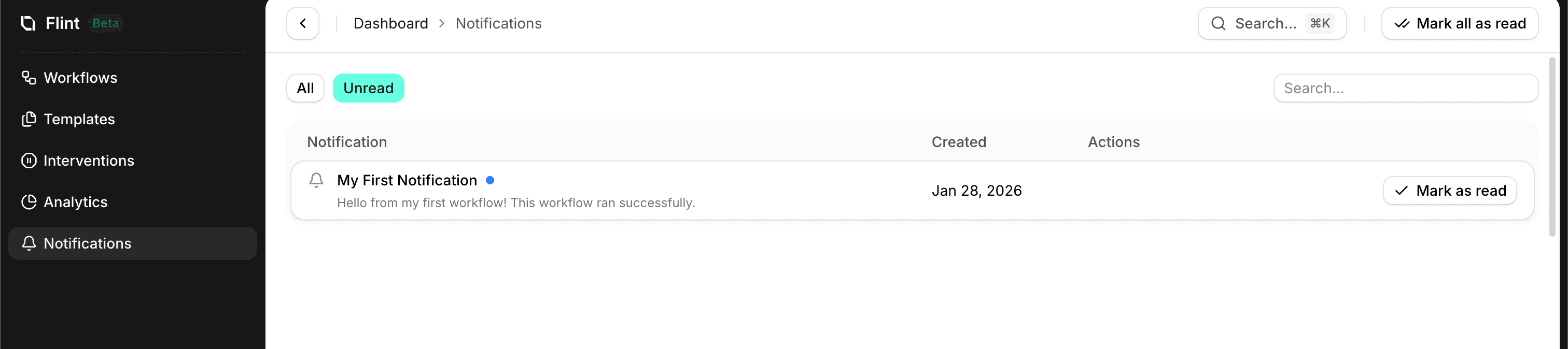
- Go back to Workflows and click on your workflow
- Click the Runs tab to see your workflow execution history
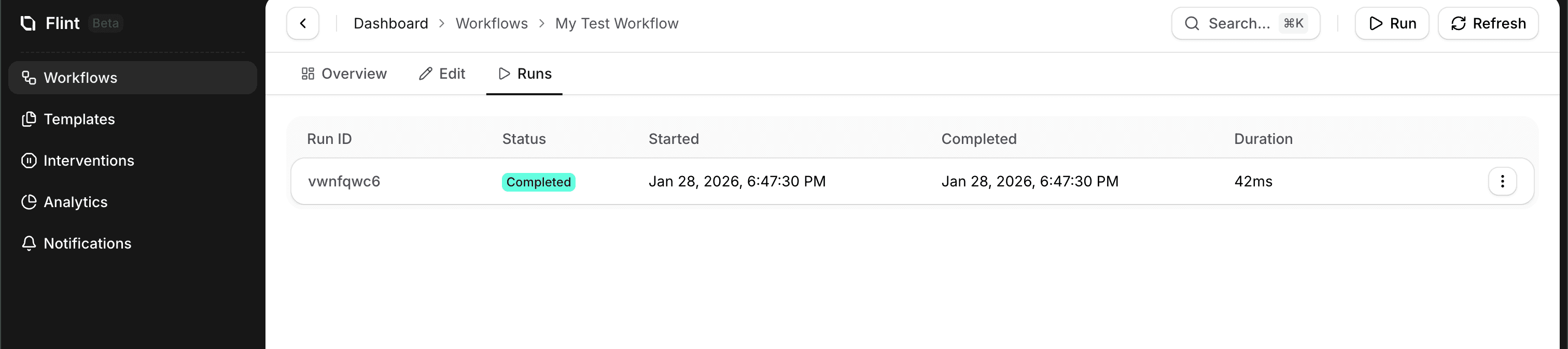
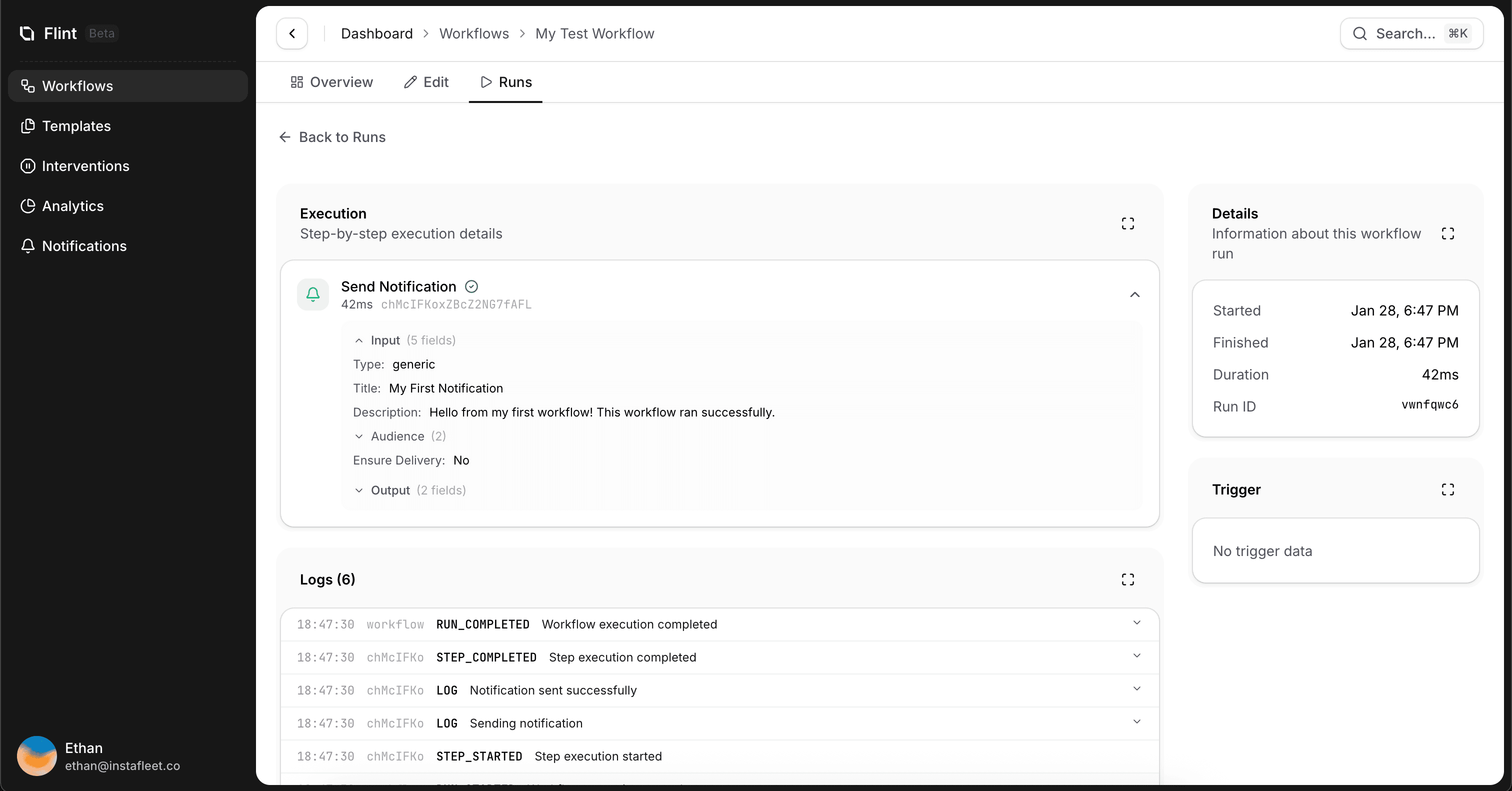
- Click on a run to see the details of each step
Congratulations!
You've just created and run your first workflow! While this was a simple example, you've learned the fundamentals:
- How to create a new workflow
- How to use the visual editor
- How to add and connect triggers and actions
- How to configure step properties
- How to run and monitor workflows
What's Next?
- Workflow Actions — All available actions explained
- Using Variables — Pass data between steps
- Interventions — Add human review steps
- Templates — Set up document templates